Mahasys Multi Zenith

OptiPlant MES · Live demo

See what your factory floor is really doing — before the shift ends.

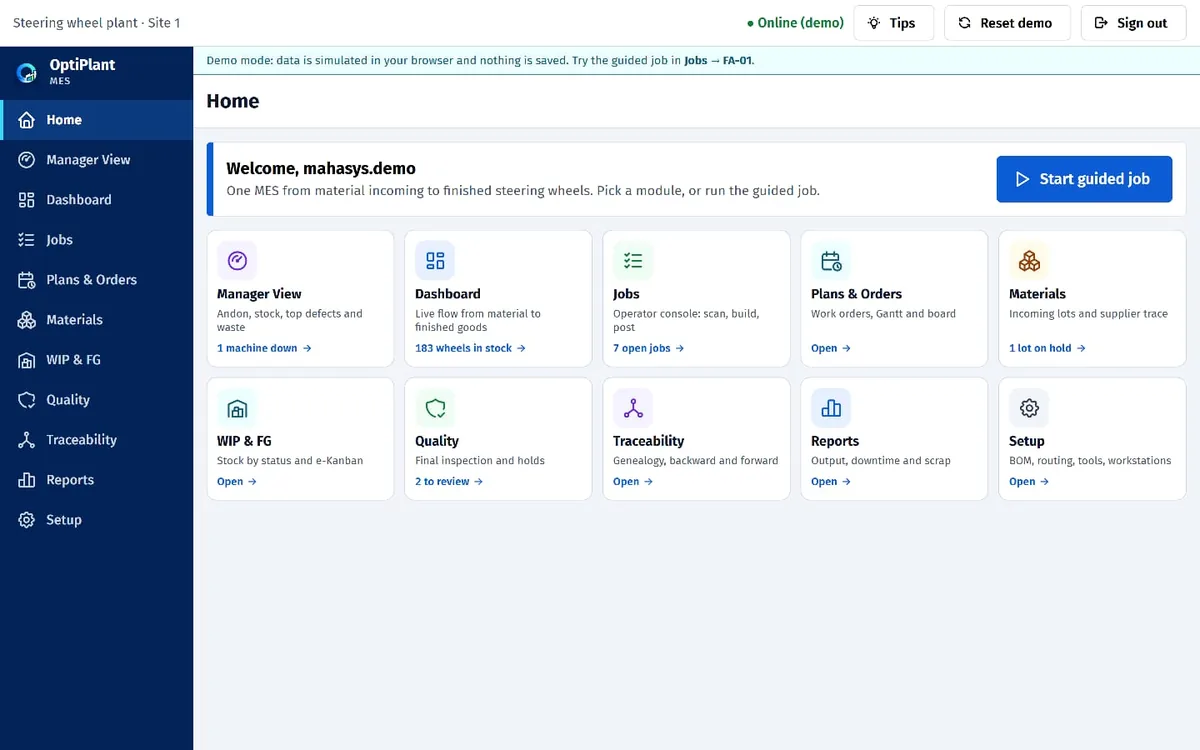
OptiPlant MES shows every machine, every lot and every reject as it happens. Try it yourself in a live demo built around a steering wheel assembly plant. Request your account in two minutes.

Our team sends your login by email, usually within one business day.

OptiPlant home screen with ten module tiles and a Start guided job button
10
modules, from material incoming to reports
5
production stages tracked live
6
guided steps for every operator job
Phone
ready: the same system on the shop floor

Eight things that go wrong on the floor — and what OptiPlant does about each

Every screen below comes from the live demo. The scenario is a steering wheel assembly plant: material incoming, sub-assembly, WIP, final assembly, finished goods.

The pain

“We only hear about downtime after the shift.”

How OptiPlant solves it

Every machine’s status, with the reason, on one screen

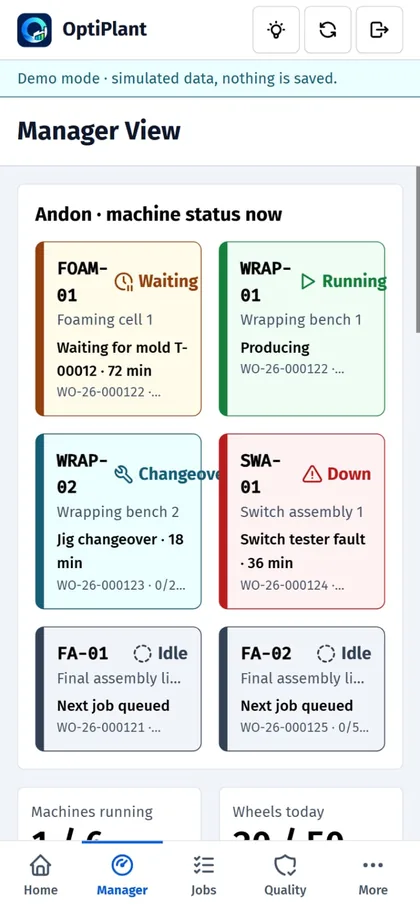
Andon tiles show each workstation as Running, Waiting, Changeover, Down or Idle — with the reason and how long it has lasted. Supervisors act while the problem is still small, not in tomorrow’s meeting.

  • Reason and duration on every stopped machine
  • Machines running, output against order, first-pass yield and scrap rate in the same view
  • A plain-language “What needs attention” summary at the top
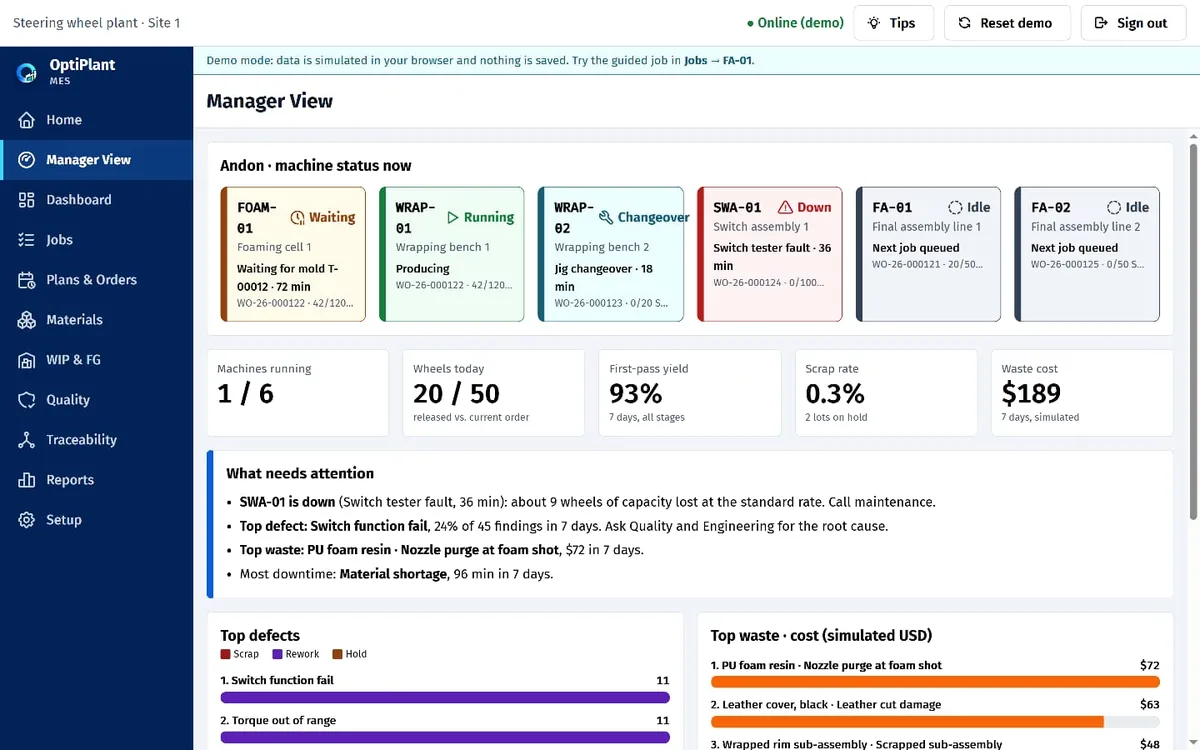
Manager view with andon tiles for six workstations and key indicators

The pain

“Scrap is eating our margin, but we can’t say which defect or which material.”

How OptiPlant solves it

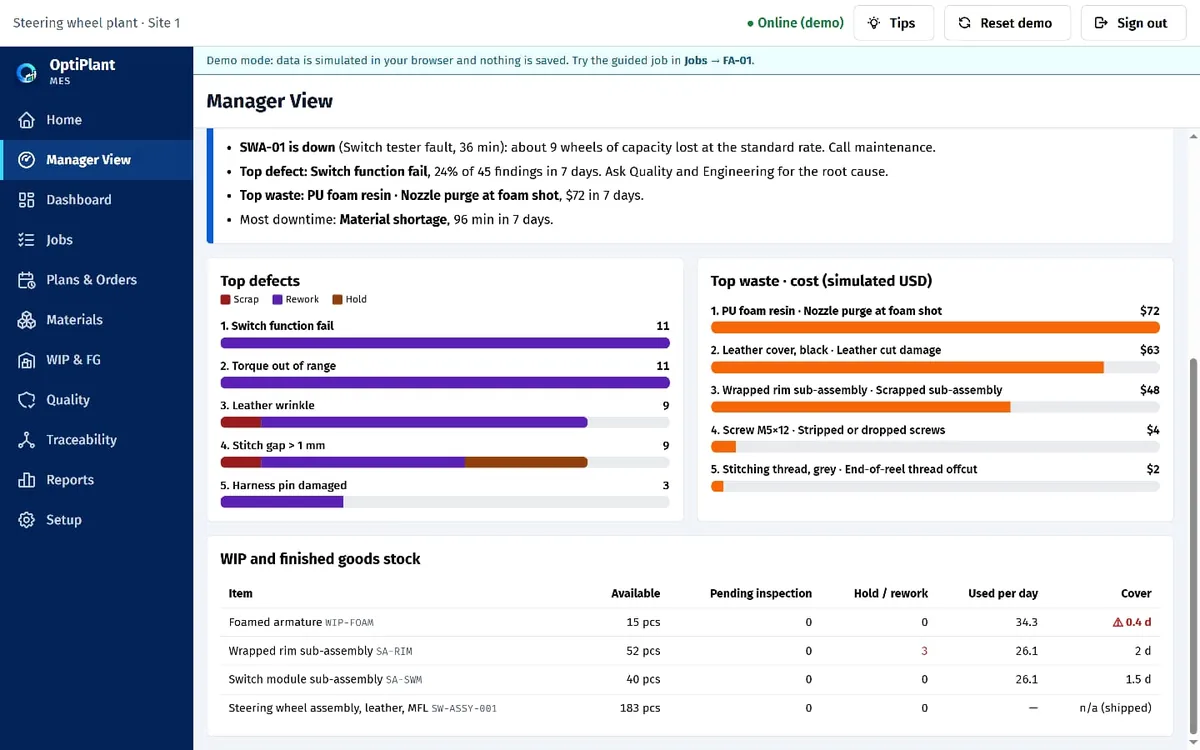
Rank defects and waste by what they actually cost

Defects are ranked by scrap, rework and hold. Waste is ranked by cost, so the first improvement project is obvious. WIP and finished goods stock show days of cover, so a shortage is visible before the line stops.

  • Top defects split into scrap, rework and hold
  • Top waste by cost (simulated figures in the demo)
  • WIP and finished goods with days of cover
Manager view with ranked defect and waste lists and a stock table

The pain

“Operators use the wrong tool or the wrong lot — and we find out at final inspection.”

How OptiPlant solves it

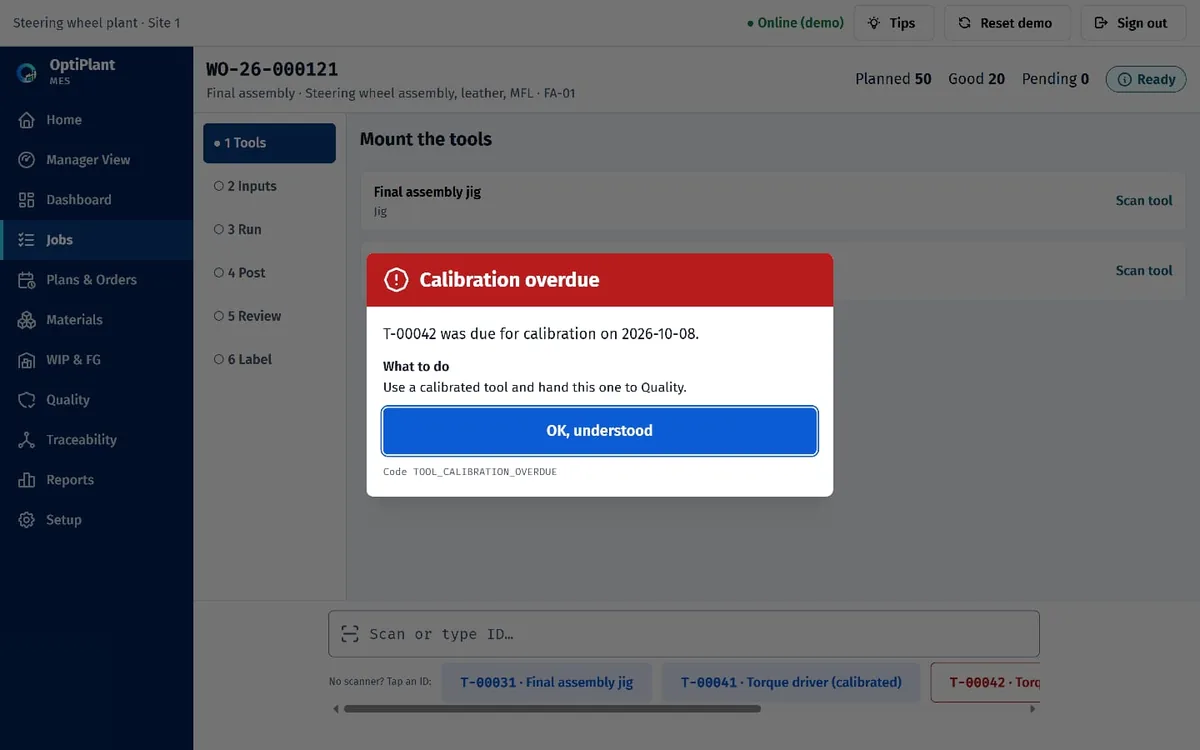
Stop the mistake before it becomes scrap

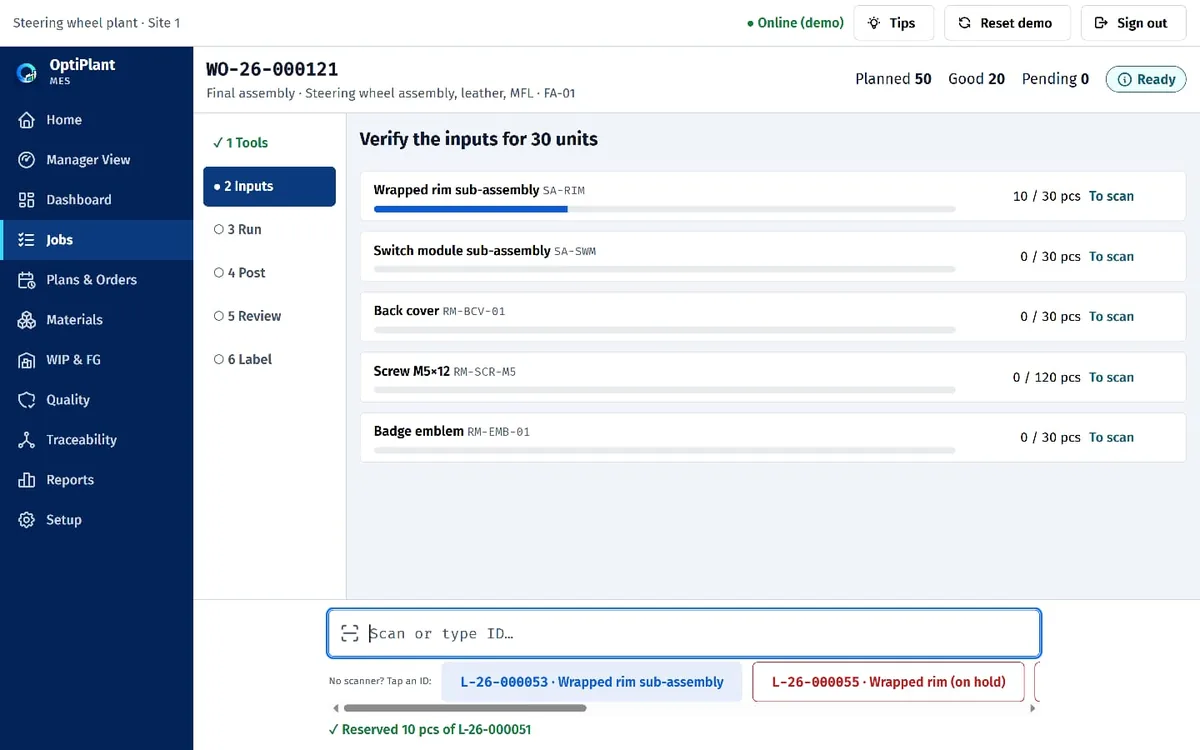
A tool past its calibration date is blocked with a clear message and a next step, and the pop-up stays until the operator confirms. Every input lot is scanned and checked against the released bill of materials before the run starts.

  • Blocking errors tell the operator what to do, not just what went wrong
  • Scan-to-verify per material, with progress on screen
  • Tap-to-scan chips let you try it in the demo without a scanner
Operator console with a red Calibration overdue pop-up Operator console on the verify inputs step with progress per material

The pain

“Doubtful units get mixed in with good ones, or scrapped before anyone decides.”

How OptiPlant solves it

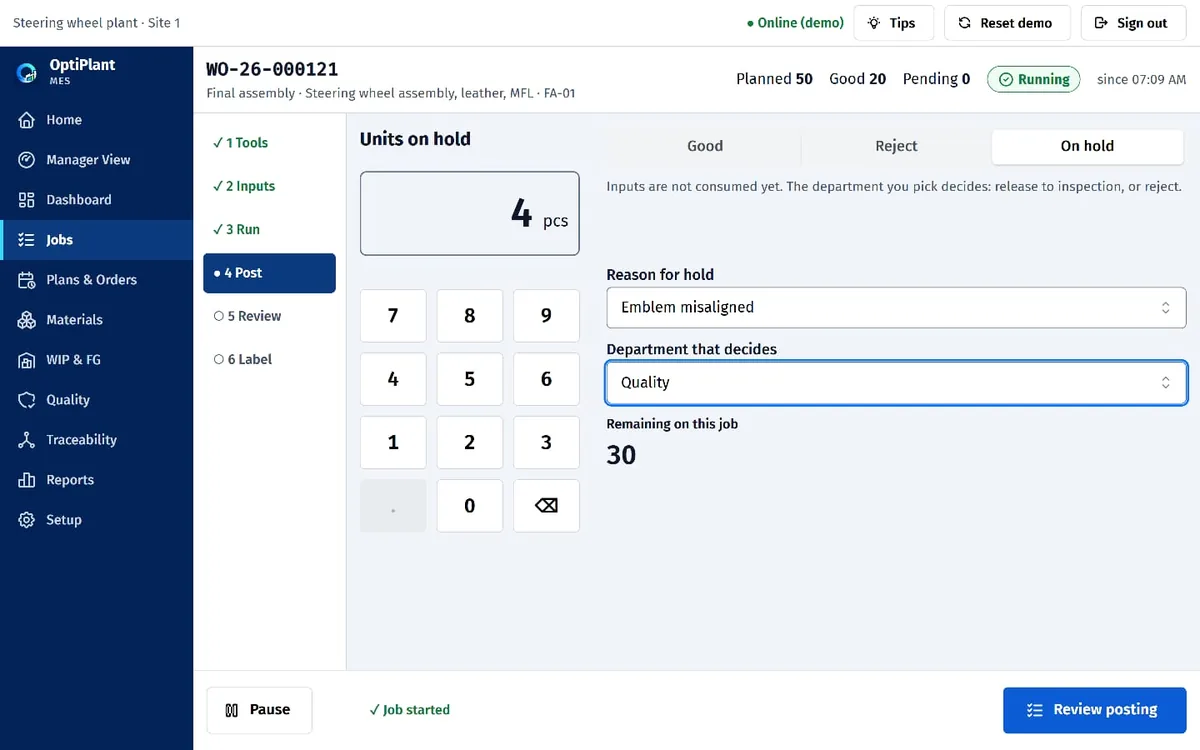
Good, reject or on hold — and the right department decides

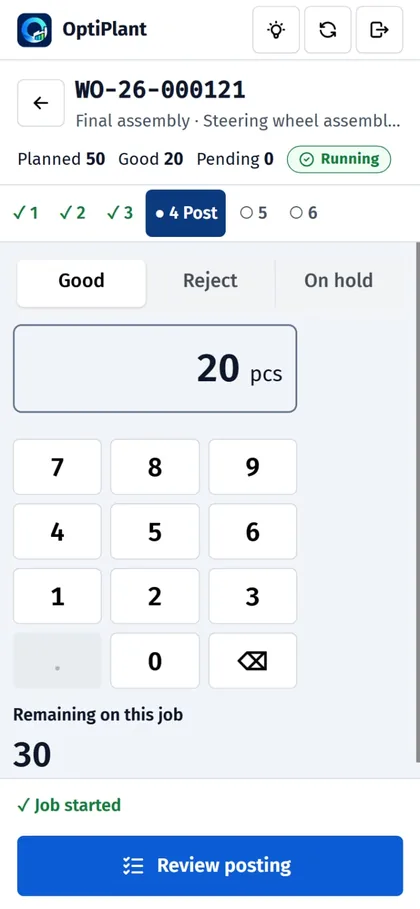
Operators post Good, Reject or On hold. Good and reject consume the materials. On hold waits in Quality until the responsible department releases it to inspection or rejects it, so nothing is consumed by mistake and stock stays correct.

  • Hold reason and owning department captured at the moment of posting
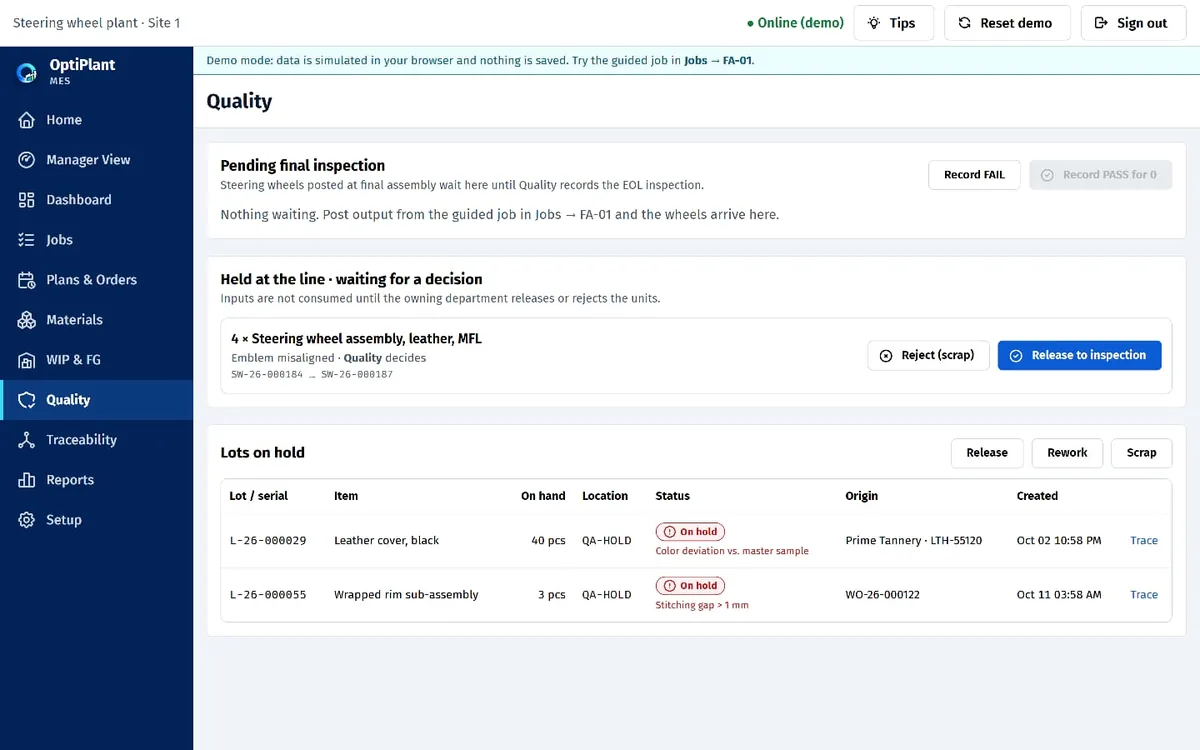
  • Held units wait in Quality with Release or Reject buttons
  • Materials consumed only after the decision
Operator console posting step with Good, Reject and On hold options and a numeric keypad Quality page with a held group of wheels and Release or Reject buttons

The pain

“A customer complaint means days of digging through paper and Excel.”

How OptiPlant solves it

Trace any serial back to its material lots in seconds

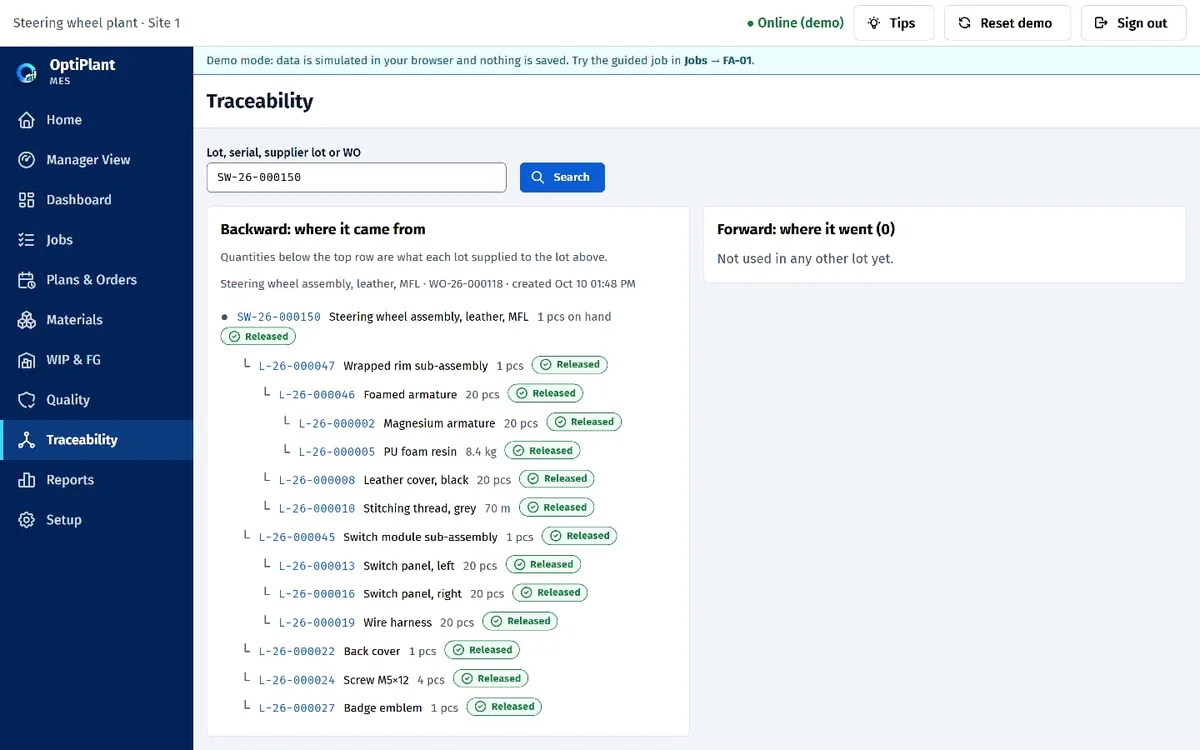
Search a serial or a lot and see its genealogy: where it came from and where it went. Recall scope becomes a search, not a project.

  • Backward: every sub-assembly and material lot behind a finished wheel
  • Forward: every unit that used a given lot
  • Status of each lot at a glance
Traceability page with a backward genealogy tree for a steering wheel serial

The pain

“The plan lives in Excel, and it’s wrong by ten in the morning.”

How OptiPlant solves it

Plan on a timeline everyone can see

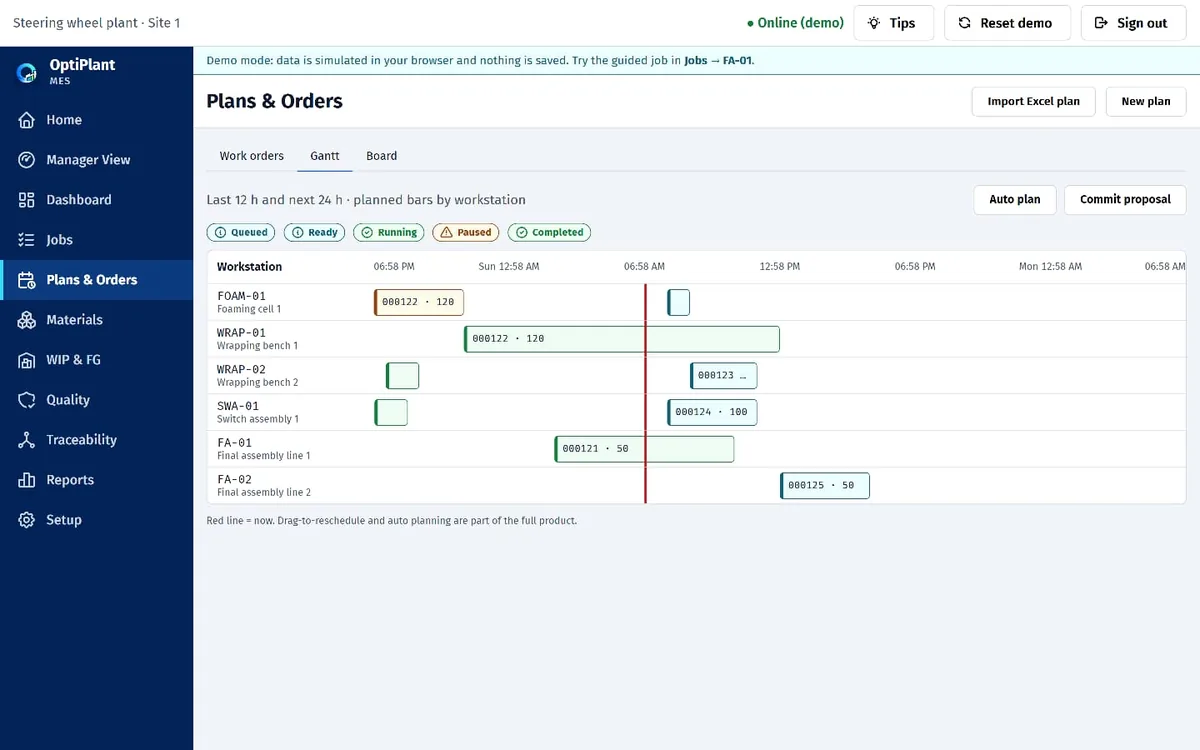
Work orders by workstation on a Gantt, with the current time marked. The same orders are also available as a list and a board, and plans can be imported from Excel. Auto-plan and drag-to-reschedule are part of the full product.

  • Gantt, list and board views of the same orders
  • Import your existing Excel plan
  • Operators see only the job in front of them, in order
Gantt chart of planned operations by workstation

The pain

“The line waits for material — or we overstock to be safe.”

How OptiPlant solves it

e-Kanban keeps the line supplied

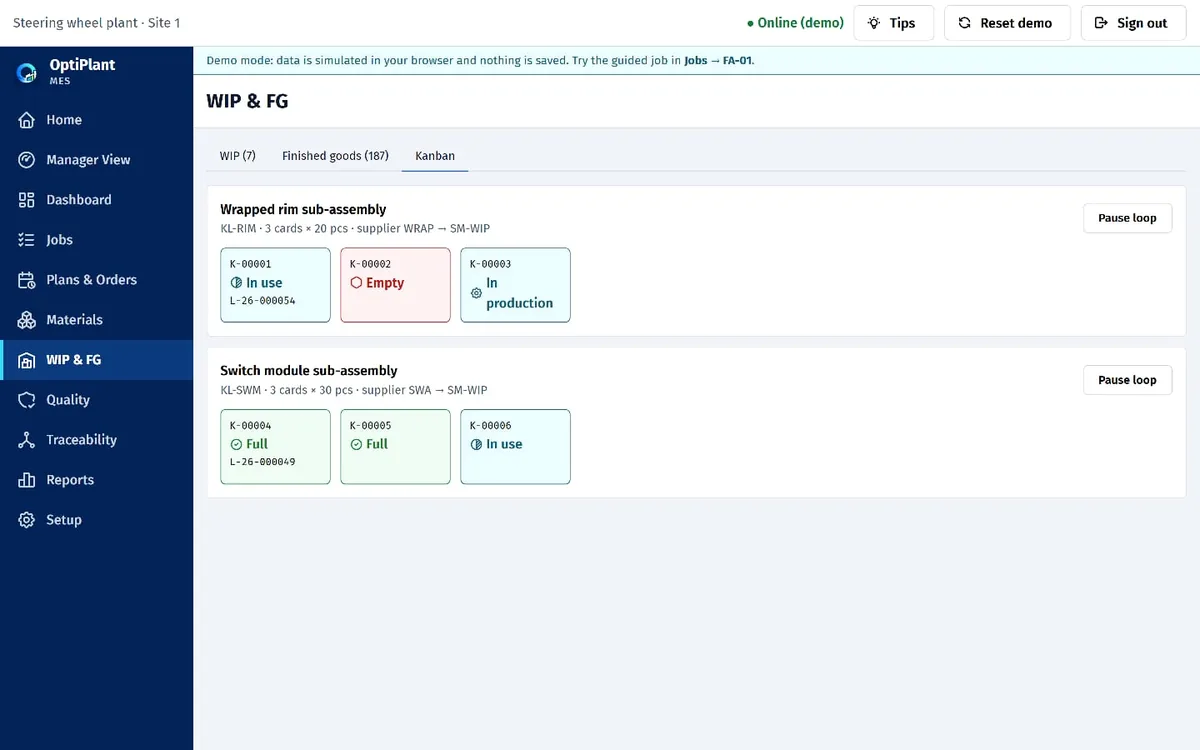
Cards move from Full to In use to Empty and ask for production when stock is consumed. Supply follows real consumption instead of guesswork.

  • Card states: Full, In use, Empty, In production
  • Linked to the WIP and finished goods view
Kanban board with cards in different states

The pain

“Someone built to the old drawing — again.”

How OptiPlant solves it

One released revision, enforced at the console

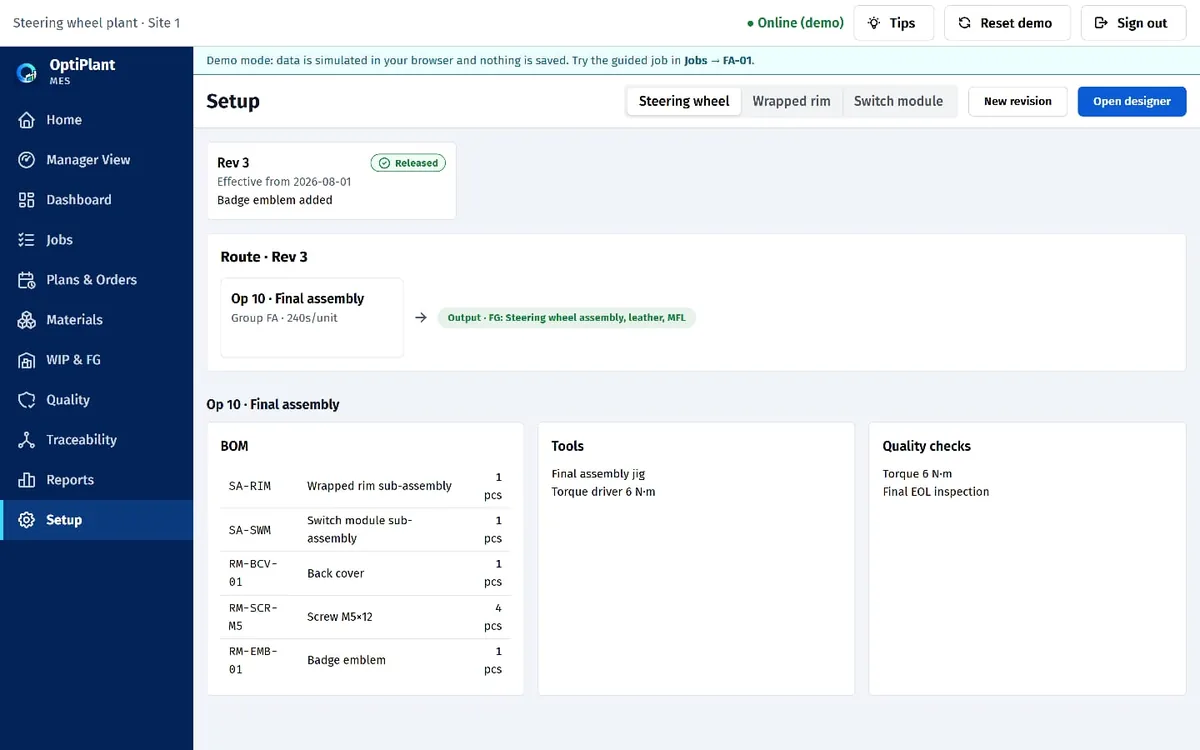
Each product revision has its own bill of materials, route, tools and quality checks. The operator console builds to the released revision only.

  • Revision-controlled BOM and routing
  • Tools and quality checks attached to each operation
Setup page with revisions, route, bill of materials and tools

“Reports are put together by hand, and the numbers arrive a day late.”

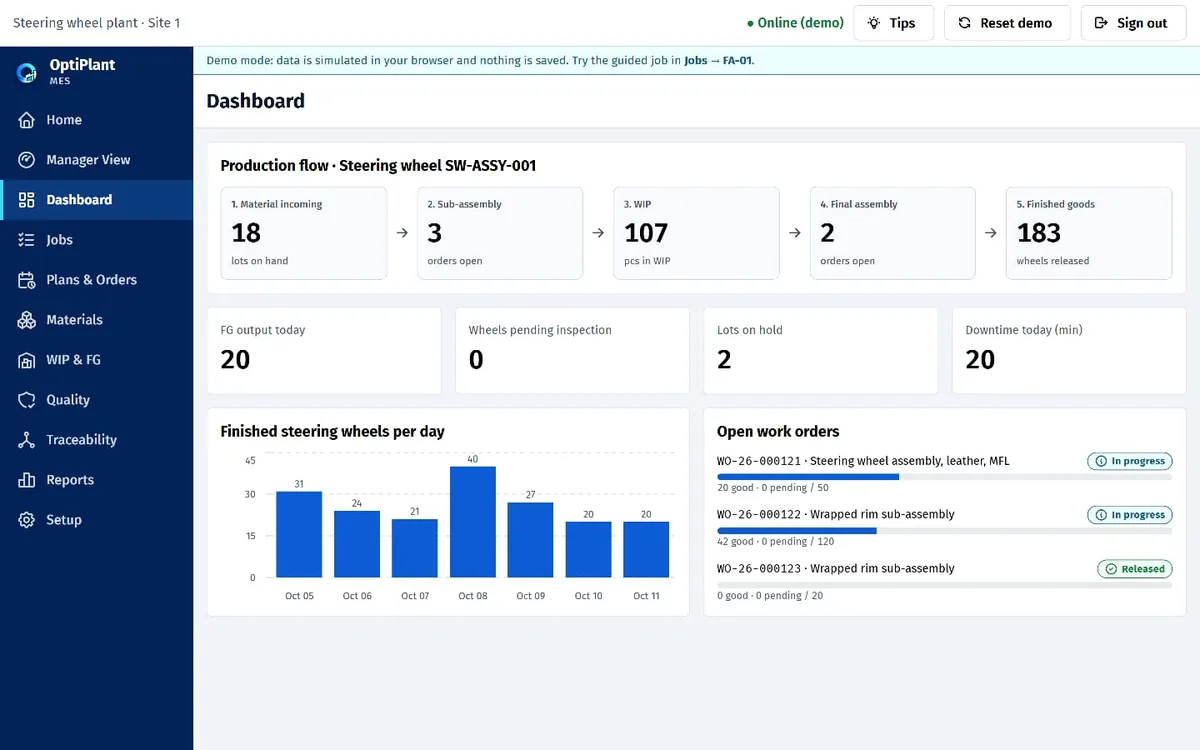
Live production flow — no Monday-morning spreadsheet

Five stages from material incoming to finished goods, output per day, and open work orders with progress. One version of the numbers, current as of now.

Dashboard with the five production stages, daily output chart and open work orders

Built for the shop floor

Not at your desk? It works on a phone.

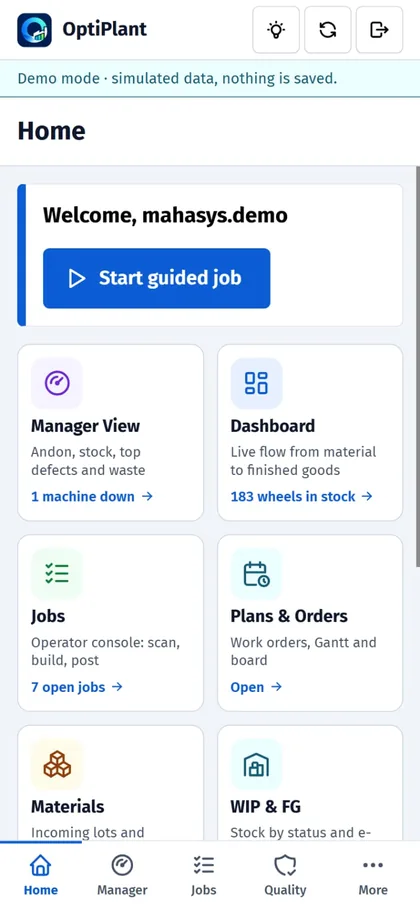
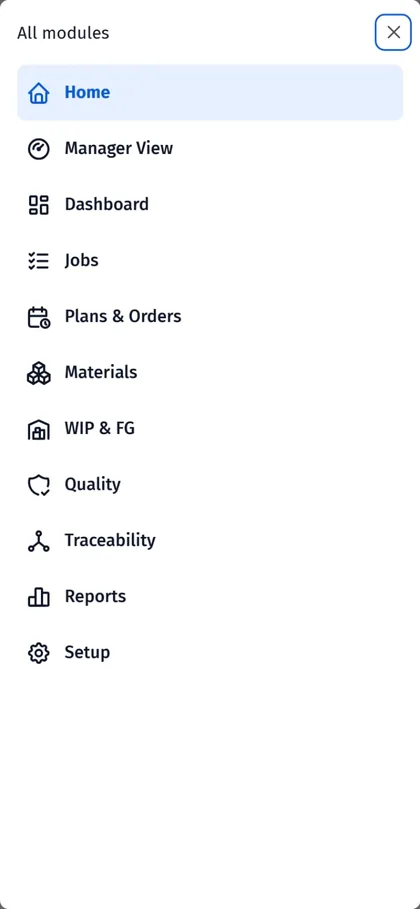
The same modules in a touch-friendly layout with a bottom navigation bar. Managers check andon and key numbers from anywhere on site. Operators post a job on one screen: type, quantity and a large action button.

Home screen on a phone with module tiles and bottom navigation Manager view on a phone showing machine status tiles Operator console on a phone with a keypad and Review posting button Phone bottom sheet listing all modules

How the demo works

  1. 1

    Tell us about your plant

    Fill in the short form below: machines, users, project start and your biggest pain point. Two minutes.

  2. 2

    Receive your login

    Our team emails the demo address, user and password — usually within one business day (Mon–Fri, 09:00–17:00 WIB).

  3. 3

    Run a guided job

    Press “Start guided job” on the home screen and build a steering wheel from scan to label. Then open Manager View and Traceability to see what that job changed.

The demo runs on simulated data and nothing you do is saved. Use “Reset demo” any time to start over.

Request demo access

Get your demo account

Tell us a little about your plant. We use your answers to point you to the screens that matter most — and to tell you honestly whether OptiPlant fits.

Machines you’d like to monitor. A rough number is fine.

People who would log in: operators, supervisors, managers.

By sending this form you agree that we may contact you about your request. We don’t share your details.

Questions before you request access

Is the demo using my plant’s data?

No. The demo runs on simulated data for a steering wheel assembly plant, and nothing you enter is saved. Dollar figures in the waste and cost views are simulated too.

How long until I get my login?

Usually within one business day (Monday to Friday, 09:00–17:00 WIB). Our team sends the demo address, user and password by email. Accounts are issued by hand, so please use a work email you check.

Why do you ask for machines, users and project start?

So we can prepare a walkthrough that fits your plant and tell you honestly whether OptiPlant is a match. We don’t share your answers, and we don’t add you to a newsletter.

Can operators use it on a phone?

Yes. OptiPlant has a touch-friendly layout with a bottom navigation bar, and the whole posting step fits on one screen. Managers can check andon and key numbers from a phone too.

What does OptiPlant MES cost?

Pricing is project-based because every plant is scoped differently: number of machines, users and integrations. Share your details in the form and we’ll come back with a quote after the demo.

What is shown in the demo and what belongs to the full product?

The demo shows the operator console, manager view, dashboard, quality, traceability, e-Kanban and setup screens. Features such as auto-plan and drag-to-reschedule on the Gantt are part of the full product.

Stop finding out late.

Ask for a demo account and see your own pain points answered on screen.

Request demo access